
Your Practical Guide to a Faster WordPress Blog in 2025
Discover the best caching, minification, and CDN plugins to make your WordPress blog load faster in 2025. Improve user experience and performance with these essential tools.

Why Blog Speed Is a Business Imperative
Research from Google shows that when a page’s load time increases from one to three seconds, the chance of a visitor leaving immediately jumps by 32%. This isn't just a technical metric. For a small business, it represents a direct threat to your goals. Every visitor is a potential customer, and a slow website means you could lose them before you even have a chance to share your message.
Think about your own online habits. You expect websites to be responsive and immediate. When they are not, you move on. Your customers are no different. This expectation is also built into how search engines work. Google’s algorithm prioritizes sites that deliver a great user experience, and speed is a primary signal of quality. A faster blog is fundamental to being discoverable in the first place.
Ultimately, performance is tied to conversions. Whether your objective is a demo request, a product sale, or a newsletter signup, a snappy, responsive site builds the trust and momentum needed to guide visitors toward that action. To speed up WordPress blog performance is to invest directly in your bottom line. The principles of high-performance design, where form and function are optimized for efficiency, apply just as much to your digital presence as they do to physical architecture.
The Foundation of Speed: WordPress Caching Plugins
Let's demystify caching with a simple analogy. Imagine your website has to assemble a page from scratch for every single visitor, fetching the header, the content, the sidebar, and the footer each time. Caching is like making a photocopy of the fully assembled page. When a new visitor arrives, your server just hands them the ready-made copy, which is significantly faster.
Choosing the right caching tool is your first and most impactful step. Here’s a look at some of the best WordPress caching plugins to help you decide based on your comfort level and budget. Building a fast blog starts with a solid content foundation, which is why tools that help you manage your WordPress website blogging are so valuable.
- WP Rocket: This is the top premium choice for the busy founder. Its main advantage is its "set it and forget it" setup. Most critical optimizations are applied automatically the moment you activate it. As sources like WPBeginner often highlight, it’s consistently ranked highly for its powerful features and user-friendly interface.
- W3 Total Cache: If you prefer granular control and aren't afraid to tinker with settings, this is a powerful option. It has a steeper learning curve but offers extensive features for advanced users who want to fine-tune every aspect of their site’s caching.
- LiteSpeed Cache: This is a server-level solution, which means it can offer incredible performance. However, there's a catch. It only works if your hosting provider uses a LiteSpeed web server. Check with your host first, because if they do, this plugin is often the fastest choice available.
- WP Super Cache: As the best free starting point, this plugin is developed and maintained by Automattic, the company behind WordPress.com. That ensures excellent reliability and compatibility. It’s a simple, no-frills option perfect for new blogs or anyone on a tight budget.
| Plugin | Best For | Key Feature | Price |
|---|---|---|---|
| WP Rocket | Beginners & Business Owners | Automated optimization with one-click setup | Premium |
| W3 Total Cache | Advanced Users & Developers | Granular control over all caching types | Free (Pro version available) |
| LiteSpeed Cache | Sites on LiteSpeed Servers | Server-level caching for maximum speed | Free |
| WP Super Cache | New Blogs & Budget-Conscious Users | Simple, reliable, and free static caching | Free |
This table provides a quick comparison to help you select a caching plugin based on your technical expertise, budget, and hosting environment.
Shrinking Your Site with Code Minification

Imagine your website’s code is a long essay. To make it readable for a developer, it includes extra spaces, line breaks, and comments. These are helpful for humans but completely unnecessary for a web browser. Minification is like an editor who strips out all that extra formatting, creating a compact version of the text that is much quicker to read.
The result is a smaller file size for your site's CSS and JavaScript files, which means they download faster for your visitors. The good news is you likely do not need a separate plugin for this. Most modern caching plugins, including WP Rocket and W3 Total Cache, have this feature built right in. Learning how to minify CSS WordPress files is usually just a matter of checking a few boxes.
Here is a simple process to follow:
- Navigate to the 'File Optimization' or 'Minify' tab within your caching plugin’s settings.
- Look for options to enable CSS and JavaScript minification and check the corresponding boxes.
- Save your changes, then open your website in a private or incognito browser window. This ensures you see the site as a new visitor would. Verify that your design looks correct and all interactive elements, like buttons and forms, still work as expected.
Delivering Content Faster with a CDN
Think of a Content Delivery Network (CDN) like a popular fast-food chain. Instead of having one central kitchen in New York that ships burgers to the entire country, they have local kitchens in every major city. When you order in Los Angeles, you get a fresh burger from the local branch, not one that traveled across the country. A CDN does the same thing for your website.
It takes copies of your site's static assets, like images, stylesheets, and scripts, and distributes them across a global network of servers. When someone visits your blog from Seattle, the content is delivered from a server nearby, not from your primary server which might be in Miami. This dramatically reduces latency and makes your site feel faster for everyone, regardless of their location.
A WordPress CDN integration is especially important if you have a geographically diverse audience. For most solo founders and small businesses, Cloudflare’s free plan is the perfect starting point. It offers robust performance and security features. Better yet, its official WordPress plugin simplifies the setup process to just a few clicks, making global content delivery accessible to anyone.
The 'Less Is More' Approach to Plugins
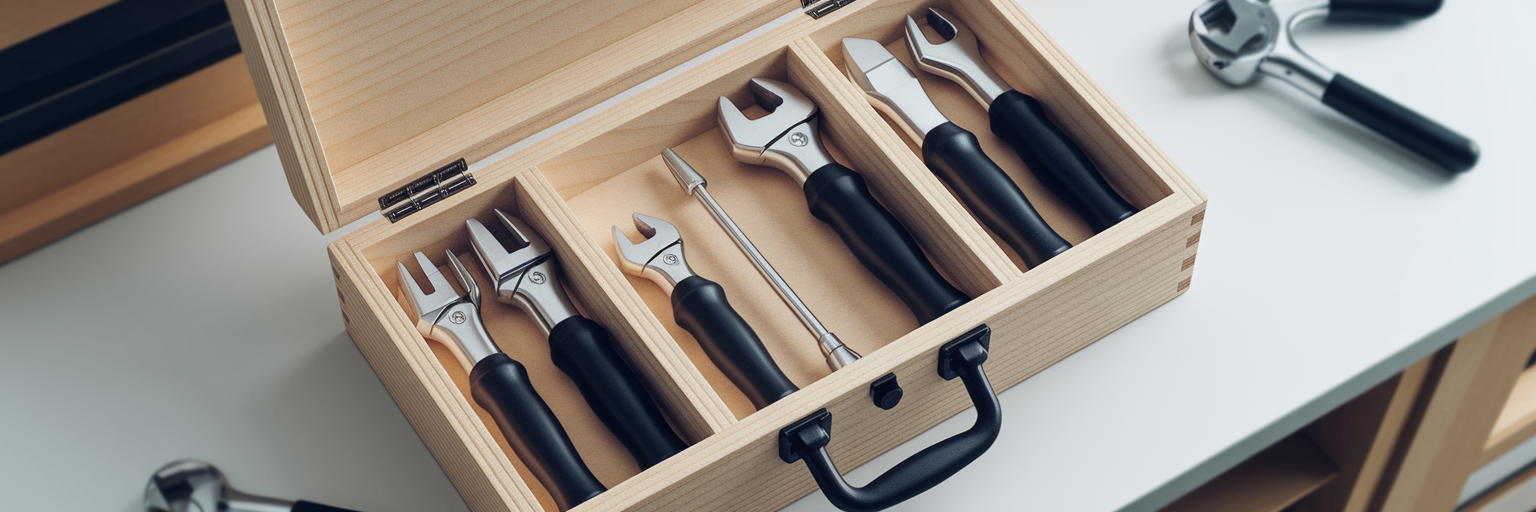
As you add tools to improve your site, it's easy to fall into the trap of "plugin bloat." Think of it as the digital equivalent of carrying too much weight in a backpack. It slows you down. Every active plugin adds code that has to be loaded, and poorly coded or redundant plugins can actively sabotage the speed optimizations you’ve just worked to implement.
Adopting a minimalist mindset is one of the most effective ways to maintain a fast site. Here is a simple plugin audit you can perform right now:
- Go to your 'Plugins' page in your WordPress dashboard.
- For each plugin, ask yourself: "Is this absolutely essential for my site's core function or a key business goal?"
- If the answer is no, or if its job is already handled by another tool, deactivate and delete it.
Focus on choosing high-quality, multi-functional WordPress performance plugins. For example, a comprehensive tool like WP Rocket handles caching, minification, and database optimization, eliminating the need for three separate plugins. This strategy of consolidating tools not only improves performance but also simplifies your workflow. A well-maintained site is a fast site, and you can see examples of this principle in action on our blog. By being intentional about the tools you use, you build a more resilient and efficient digital presence.